How to Network Effectively at Conferences with QR Codes
Written with AI assistance. This article was researched and drafted by Aanya Sharma, Portrai's AI content assistant, then reviewed by the team for accuracy and voice. Spot an error or have feedback? Let us know.
You've got 30 seconds after a great conversation to exchange contact info. Fumbling with a paper card or spelling out an email kills the moment. A QR code fixes that.
Why QR Codes Work at Events
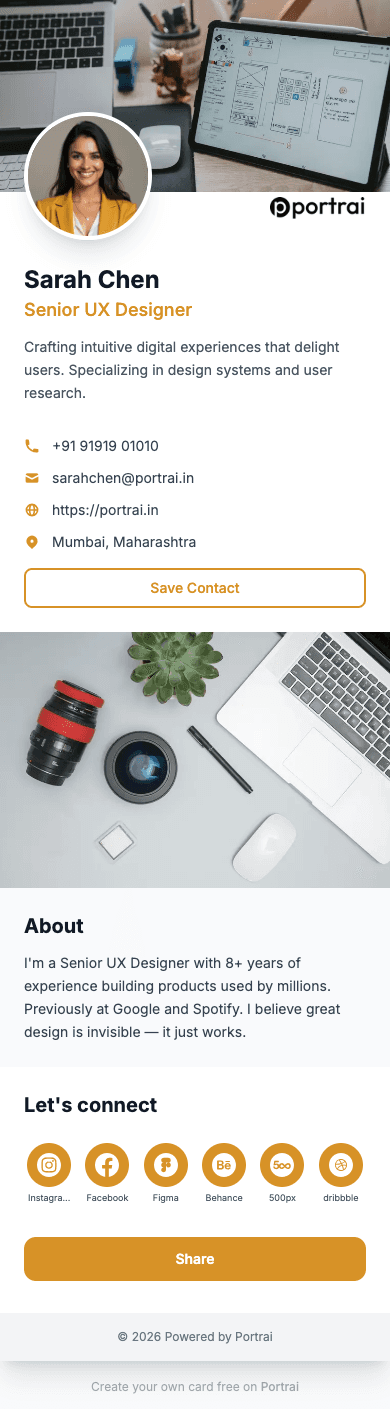
QR codes are instant. The other person opens their camera, scans, and your full digital business card appears — with your name, role, photo, social links, and a "Save Contact" button. No app download needed.
Here's why that's powerful at conferences:
- Speed: The exchange takes under 5 seconds
- Accuracy: No typos, no misheard phone numbers
- Complete: They get your full profile, not just a name and number
- Trackable: You'll know they actually viewed your card
Where to Use Your QR Code
On Your Phone
Keep your QR code ready as your lock screen wallpaper. When someone asks for your details, just show your screen. They scan, done.
On Your Badge or Lanyard
Print your QR code and attach it to your conference badge. People can scan it even while you're mid-conversation with someone else. Lanyards win here — they're always visible, hands-free.
In Your Presentation
If you're speaking, put your QR code on your closing slide. Let the entire audience save your contact at once.
On Physical Materials
Add your QR code to your notebook cover, laptop sticker, or portfolio. It works as a passive networking tool — people scan it without you needing to initiate.
Use a Professional Background for Virtual Events
Half of networking now happens over video. Zoom happy hours, virtual panels, hybrid conferences — any of them is a missed opportunity unless your background is doing the work for you.
With Portrai's Background Generator, you can turn your card into a branded Zoom background with your QR code embedded. Your name, role, and QR are overlaid on a template you choose (or your own photo), downloaded at 1920×1080, and dropped into your video call settings.
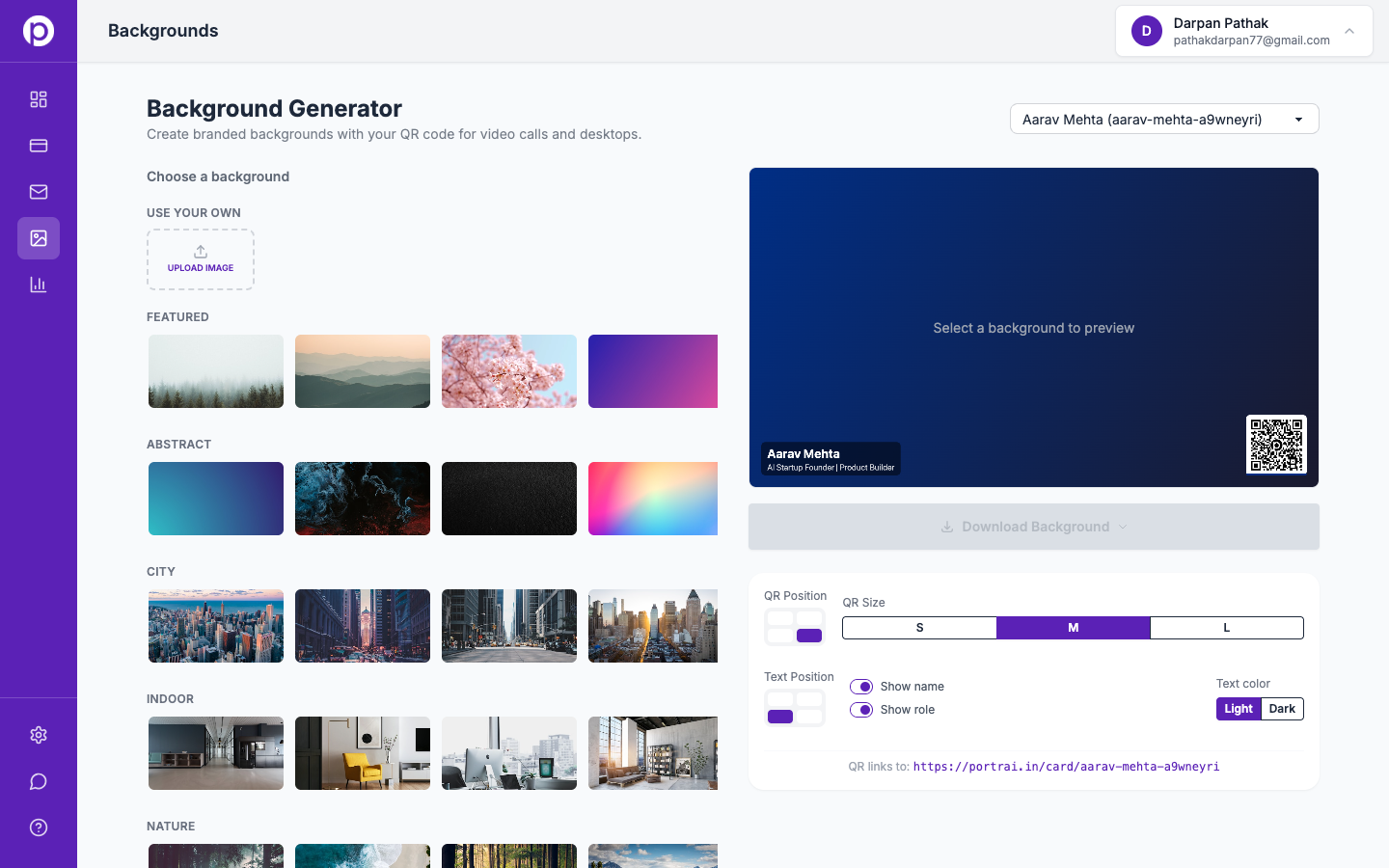
Any attendee on a virtual panel — clients, candidates, speakers — can point their phone at your tile and land on your card in under two seconds. It's the most passive networking tool you can set up in under a minute.
Tips for Better QR Code Networking
1. Make Your Card Worth Scanning
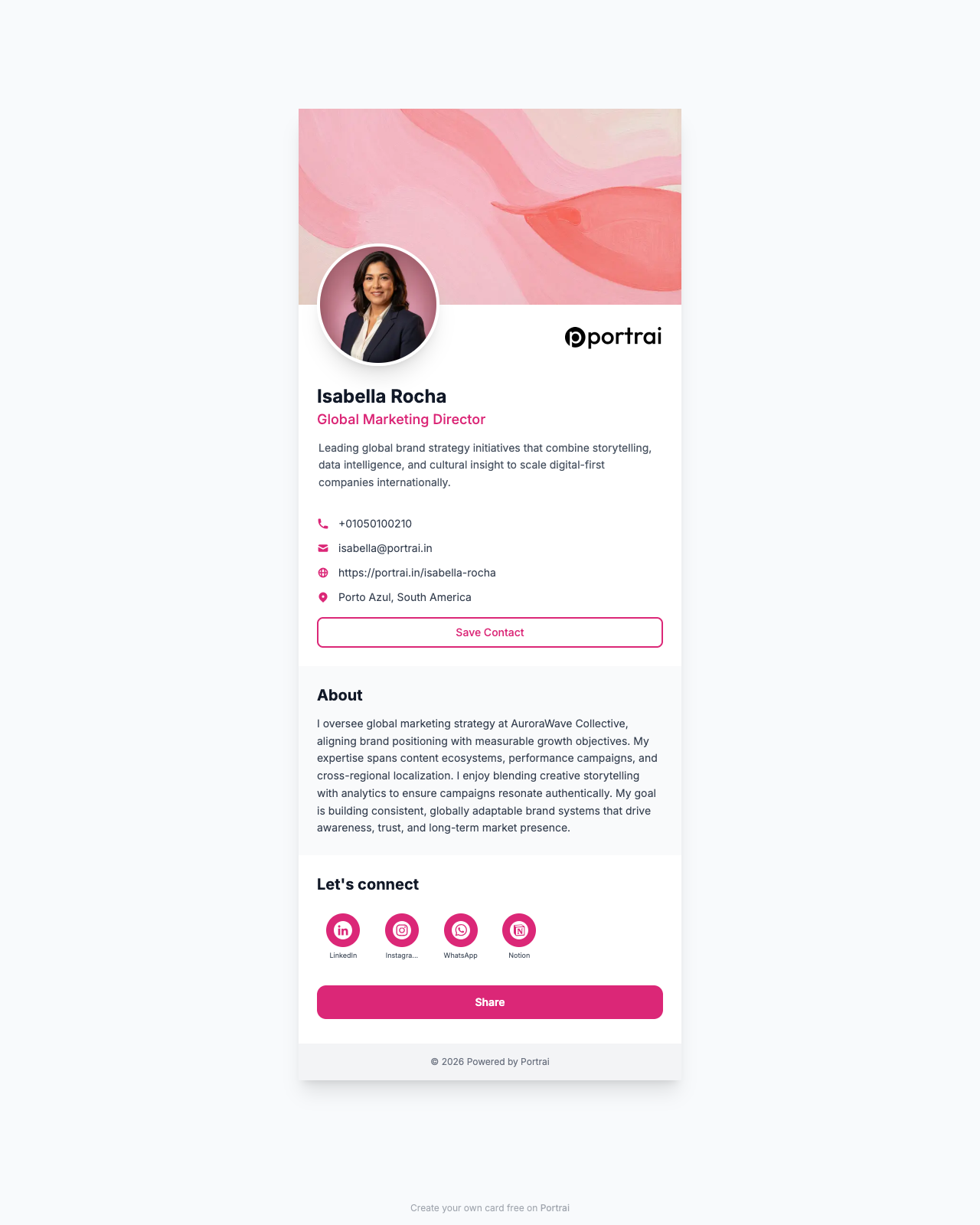
Your digital card should answer: "Why should I stay in touch with this person?" Include:
- A clear, professional photo
- Your current role and organization
- A concise bio (2-3 sentences)
- Relevant social profiles (LinkedIn, Twitter)
- A link to your work or portfolio
2. Follow Up Fast
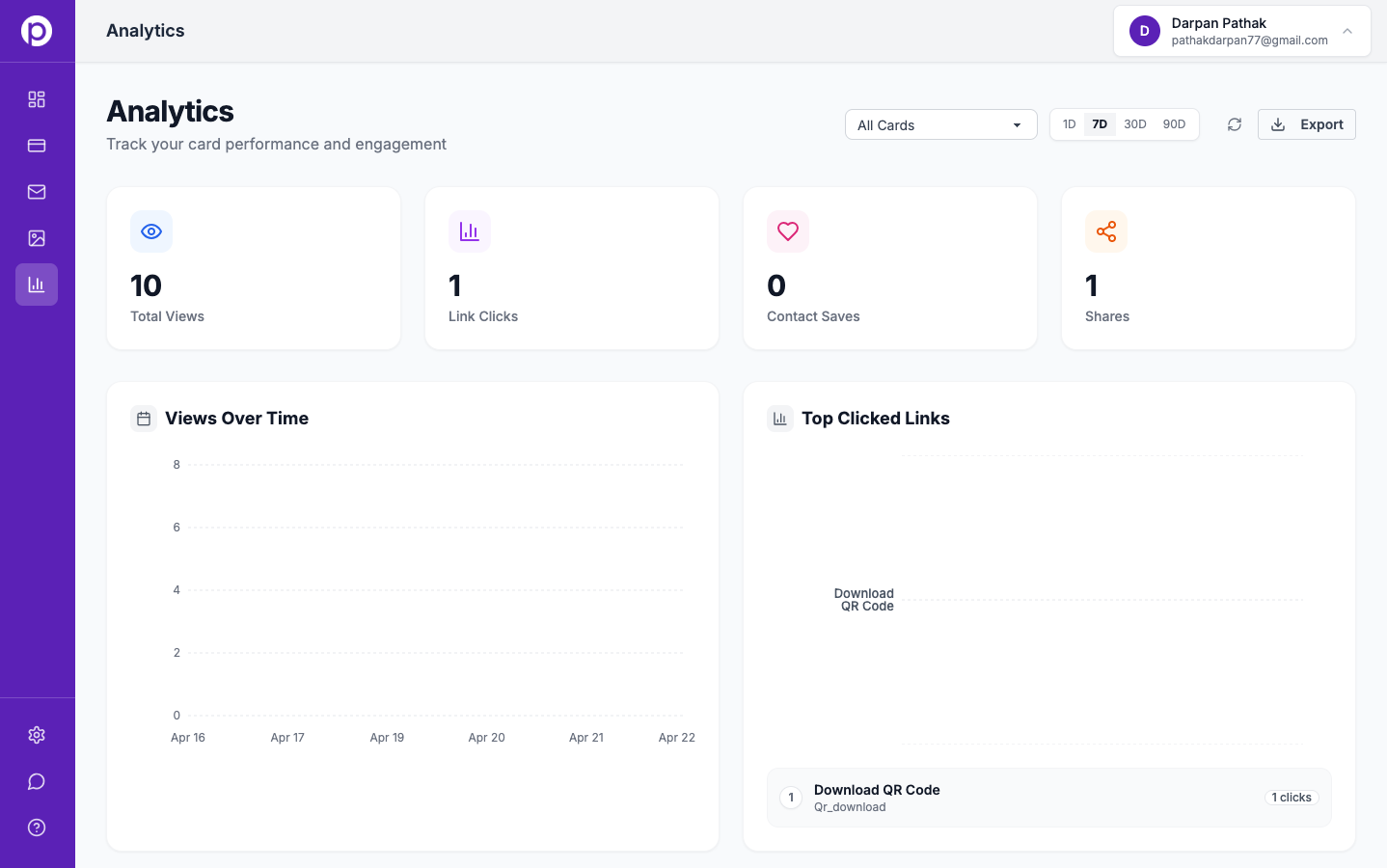
With analytics from your digital card, you can see exactly how many people viewed your card, which links they clicked, and where they're located. Follow up within 24 hours while the conversation is fresh.
3. Customize for the Event
If you're at a tech conference, highlight your GitHub and portfolio links. At a business networking event, lead with LinkedIn and your company website. Portrai cards are inline-editable, so you can update your link order the morning of an event without a rebuild.
4. Test Before the Event
Scan your own QR code from different angles and distances. Make sure the card loads fast and looks good on mobile.
5. Add Your QR to Your Email Signature
After a conference, the follow-up email is where most connections are won or lost. An email signature with your card's QR code and link makes it one-tap easy for them to revisit your profile days later. Portrai's Email Signatures generator builds this for Gmail, Outlook, and Apple Mail in under a minute.
Setting Up Your QR Code
- Create your digital card at portrai.in
- Generate your QR code — it's automatic with every card
- Download it for printing, or keep it on your phone for live scanning
Every card on Portrai comes with a built-in QR code. Free, no setup required.
The Conference Networking Playbook
Before the event: Update your card with relevant info, test your QR code, set your Zoom background if any sessions are virtual.
During: Lead with the QR code for quick exchanges. Save deeper conversations for the people who matter.
After: Check your card analytics, follow up with everyone who viewed your card within 24 hours, and swap in a branded email signature so your next email does the re-introduction for you.
The goal isn't to collect the most contacts. It's to make sure the right people can reach you — easily and instantly.
Ready to create your digital business card?
Join professionals who use Portrai to network smarter.
Get Started Free