Welcome to Portrai — My Top Tips for Getting Started
Hi, I'm Darpan — the founder of Portrai. If you're reading this, you just signed up. Thank you. I wrote this post to help you get value out of the product in the next 10 minutes, not the next 10 days.
I'll walk you through the features in the order I'd use them if I were starting over today, and share the small calls that make a bigger difference than they look.
1. Build a card that gets remembered
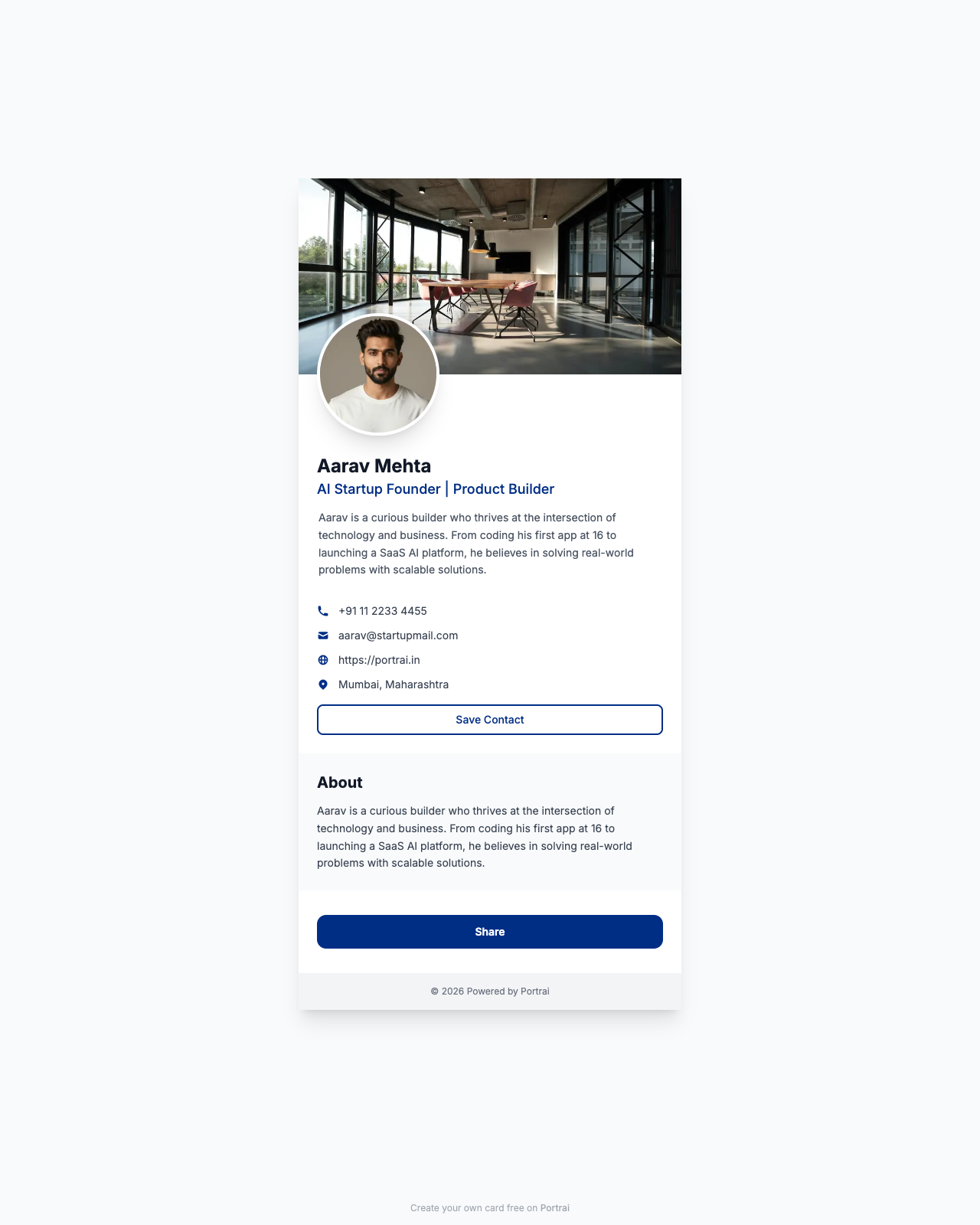
Head to your dashboard and hit Create New Card. The wizard walks you through four short steps — You, Details, Connect, Review — with a live mobile preview on the right so you can see the card take shape as you type.
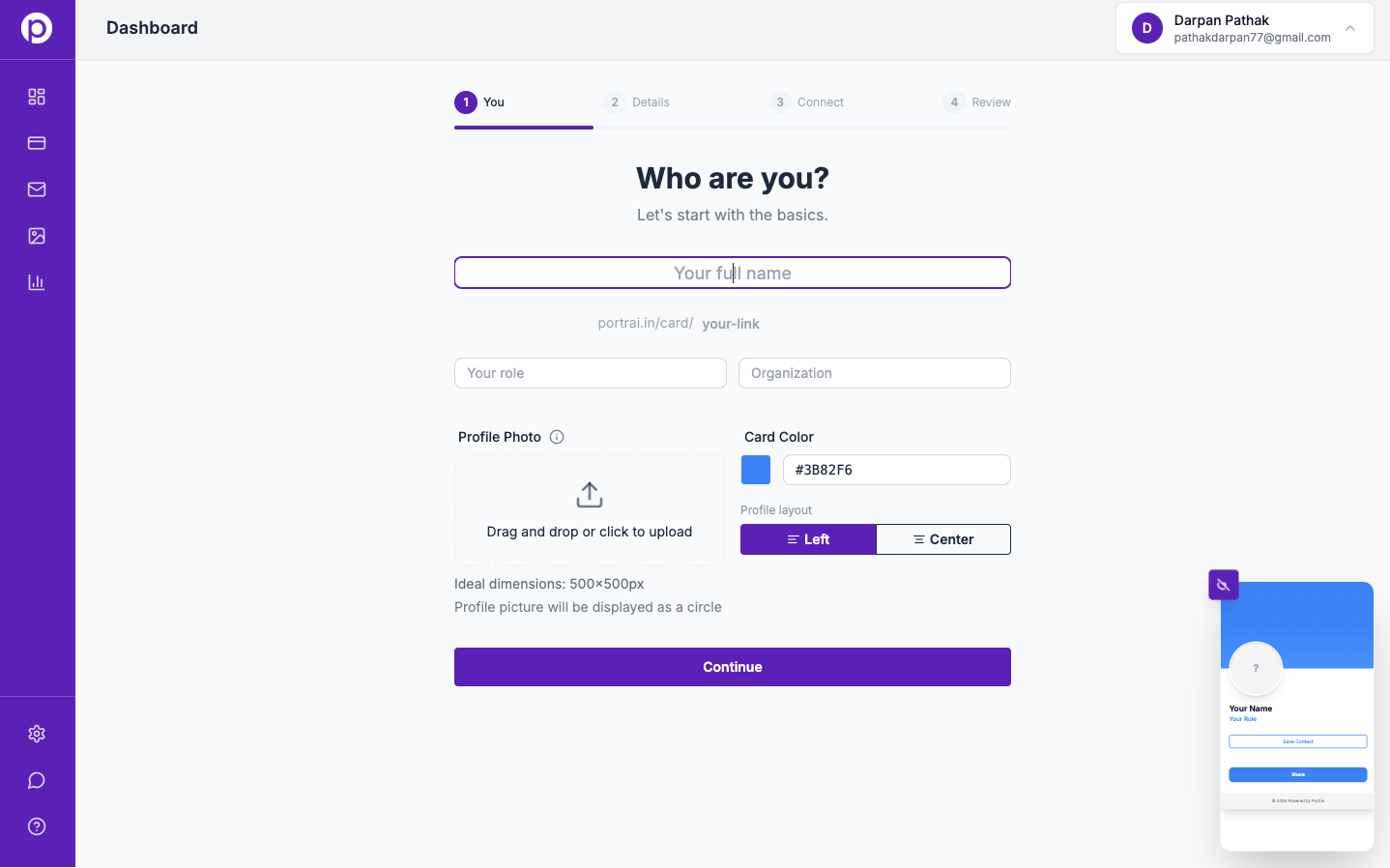
The essentials:
- Photo — one clear headshot. Don't overthink it. Your face in natural light beats a studio shot with bad color grading.
- Name, role, and organization — use the version you want strangers to remember, not the one on your passport.
- Bio — one line. Specific, not clever. "I help early-stage B2B SaaS teams hit their first $1M ARR" beats "Helping founders win."
- Card color and layout — pick a brand color and whether your profile sits left-aligned or centered.
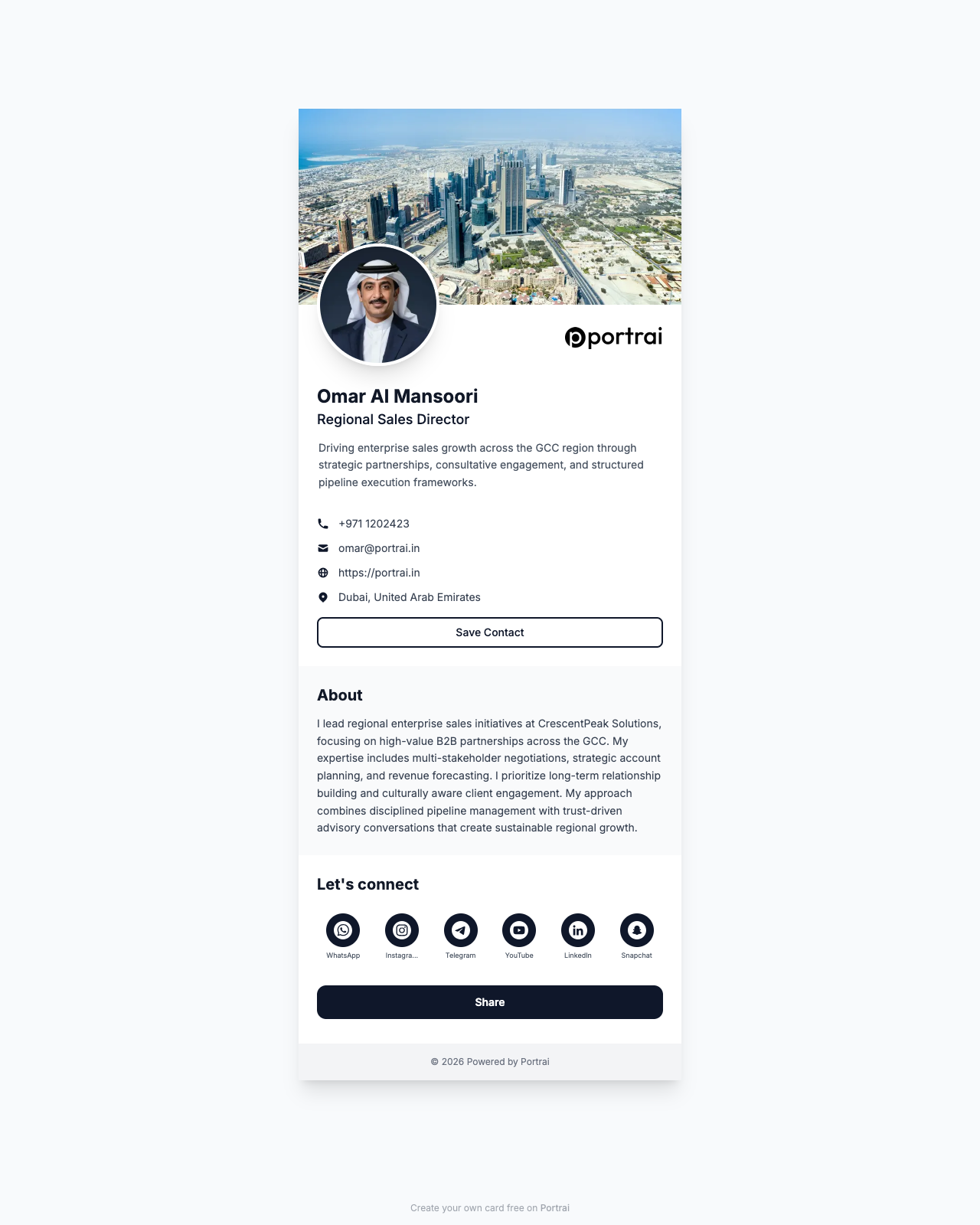
- Social and custom links — your podcast, your Calendly, your latest blog post — anything you want people to land on after they scan.
Founder tip: treat the first link as your primary CTA. If you want meetings, make it your Calendly. If you're selling a product, make it your pricing page. The first link is where most card visitors click — make it count.
Every field is inline-editable from the preview later, so you don't need to get it perfect the first time. Click the field, edit it, it saves.
2. Share it like you mean it
Every Portrai card comes with a short URL — portrai.in/card/yourname — and a QR code. The QR is the thing that turns your card from a URL into something you can hand over in a second.
Three places to put the QR:
- Your phone wallpaper or lock screen — the fastest path from "nice to meet you" to "saved your contact."
- Your laptop — a sticker on the lid, facing out. People scan it while you're still setting up at a conference booth.
- Your lanyard — always visible, hands-free, works while you're mid-conversation with someone else.
And three places to drop the URL:
- DMs — when someone says "let's stay in touch," paste the URL. It opens instantly, no download.
- LinkedIn and Twitter — pin a post with your card link. It works as a low-effort CTA for everyone who lands on your profile.
- In person — say "portrai.in/card/yourname" slowly. The slug is short enough to spell.
Founder tip: claim a clean custom username before someone else does. portrai.in/card/darpanpathak is 10× more memorable than a random ID.
3. Own your video calls with a professional background
Every remote meeting is a missed networking moment — unless your Zoom background is doing the work for you.
Portrai's Background Generator turns your card into a branded wallpaper with your QR code embedded, ready for Zoom, Google Meet, and Teams. Pick a template (we have Abstract, City, Indoor, Nature, Minimal, and Dark sets built in), or upload your own photo. Your name, role, and QR are overlaid in real time. Download at 1920×1080 and drop it into your video call settings.
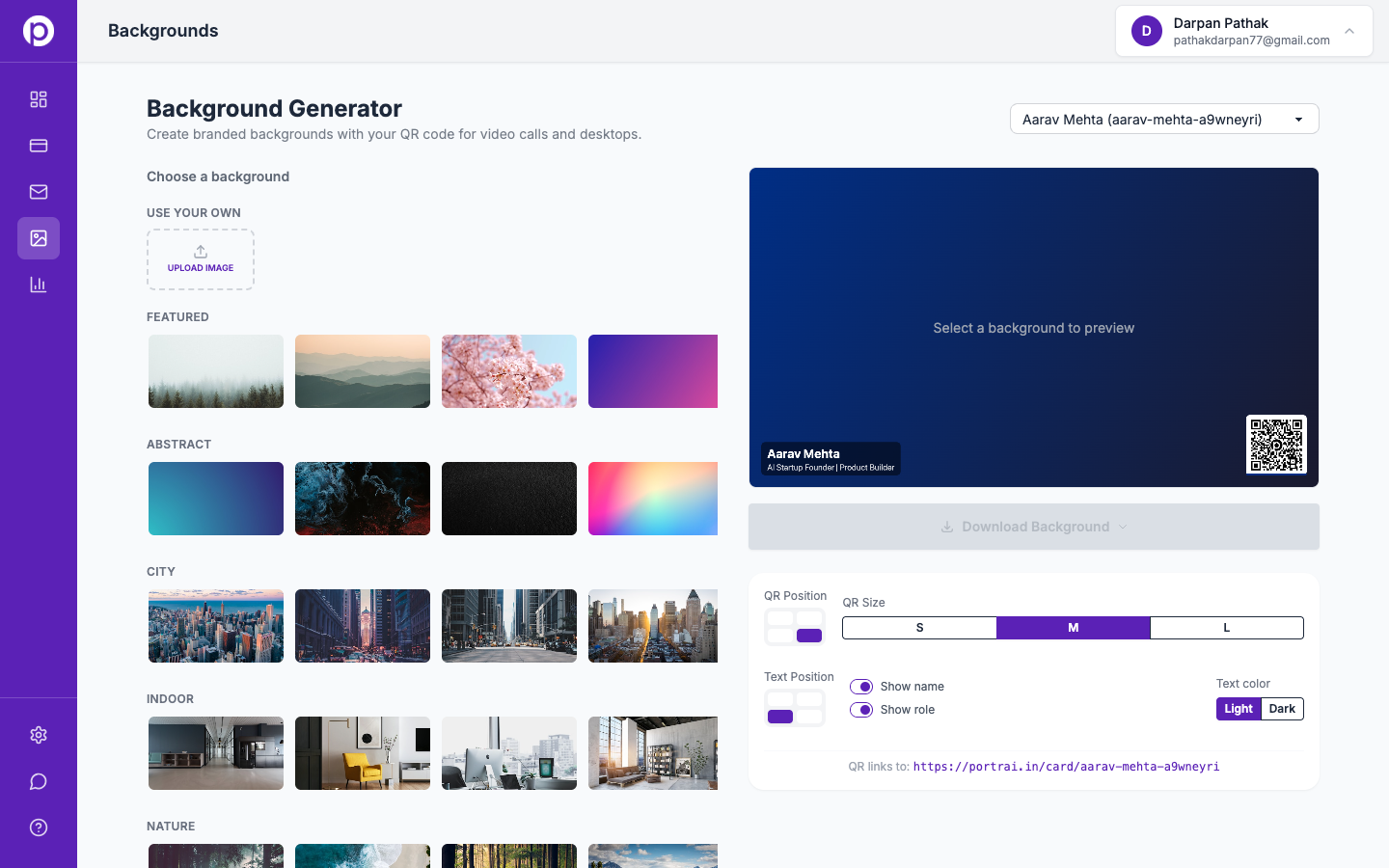
Founder tip: every call is a chance for someone to scan. A client, a candidate, a prospect — any of them can point their phone at your Zoom tile and land on your card. It's the most passive networking tool you can set up in under a minute.
4. Put your card in every email you send
The QR covers in-person. The URL covers DMs. Your email signature covers the other 80% of professional conversations.
Portrai generates a branded email signature with your avatar, your card's QR, and a consistent layout — ready to paste into Gmail, Outlook, Apple Mail, or your team's platform of choice. Pick a Style (Box / Horizontal / Fusion / Hybrid / Traditional), pick a Platform, and the install instructions update for that specific client.
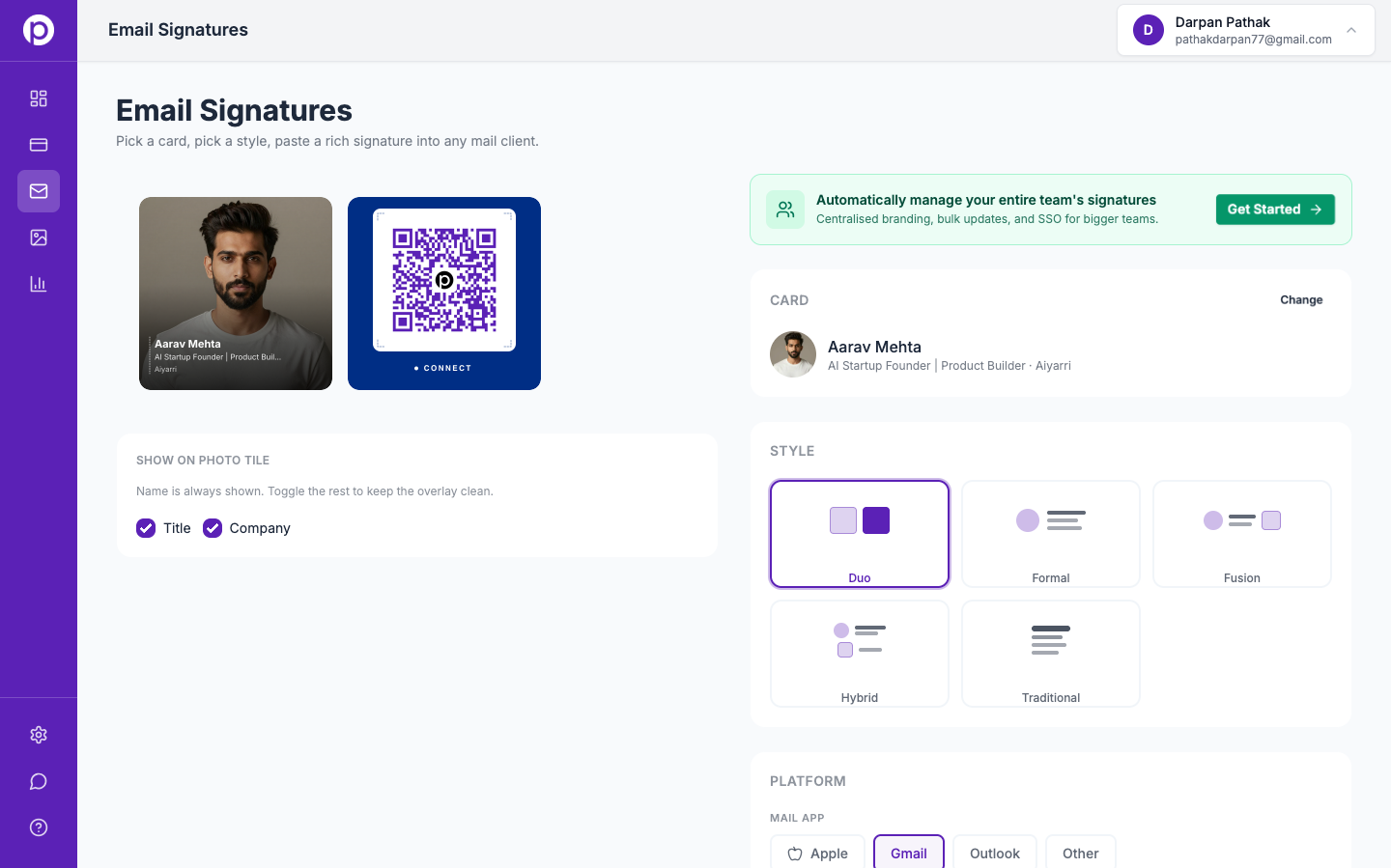
Founder tip: swap your email signature today. Every person you've emailed in the last year is a candidate to re-engage — and your signature is free real estate that used to just say "Sent from my iPhone."
5. Embed anything
You can embed a YouTube video, a Spotify episode, a Loom walkthrough, a Calendly booking widget, or a short intro reel — directly on your card. People scan, and the embed plays right there. No third-party app switching.
Founder tip: a 30-second intro video on your card converts better than any bio. If you have one, embed it at the top. If you don't, record one on your phone this week. Vertical, 30 seconds, no script.
6. Use the data
This is the part paper cards can never do. Your Portrai dashboard shows:
- Total views — how many people opened your card
- Link clicks — which of your custom links gets the most traction
- Contact saves — how many people actually saved your details
- Scan sources — whether they scanned your QR or clicked a shared link
- Top countries and devices — where and how people are opening your card
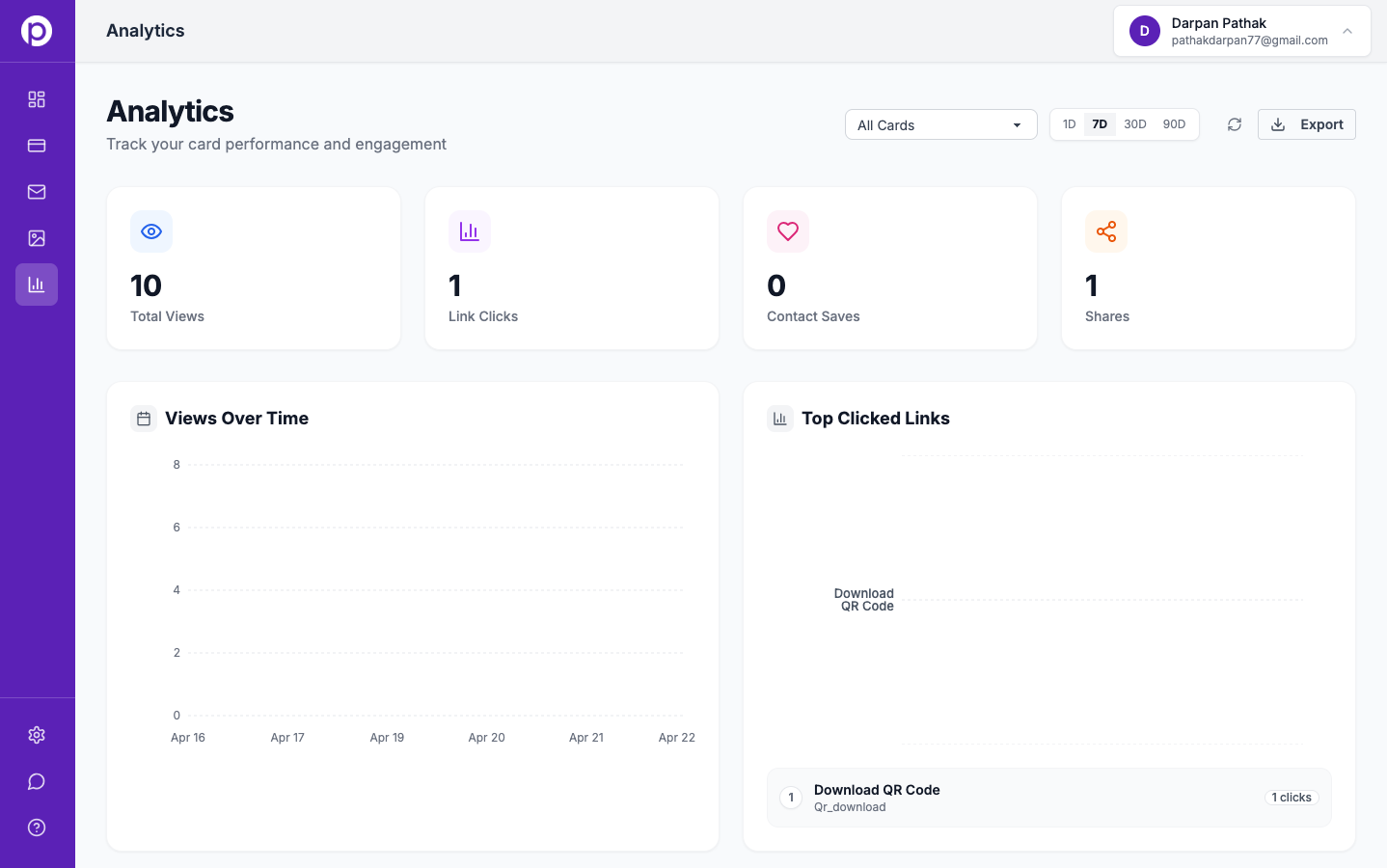
Founder tip: after any event or campaign, check the scan sources chart. If a conference generated 40 scans but no contact saves, your "Save Contact" button needs to be more prominent — or your bio isn't landing. Use the data, iterate, repeat.
A few things I've learned watching early users
- Cards with photos get 3× more saves than cards without. Use a real photo.
- The top 3 custom links capture 85% of clicks. Put the important ones first.
- Bios under 100 characters outperform longer ones. Short beats thorough.
- QR codes on lanyards outperform QR codes on business cards. Lanyards are always visible. Cards live in pockets.
Go build your card
Everything above takes under 30 minutes, end to end. Set aside a Sunday evening, do it properly once, and you'll stop thinking about it for the next year.
If you have a feature request, reply to the welcome email. I read every one.
— Darpan
Ready to create your digital business card?
Join professionals who use Portrai to network smarter.
Get Started Free